Pipe and Structure Data Tables
Table of contents
- Selecting Network Data
- Overview
- Table Column Preferences Customization
- Example Usage Cases
- Additional Features
Selecting Network Data
The selection method applies to both the Elevation Design tab table and the General Data tables. The tool provides 3 modes to select your network data to display:
- By Selection of Pipes/Structures - Select the objects to show.
- By Piping Network - Select the network to display the data.
- By Pipe Run - Select the initial and last Pipe/Structure.
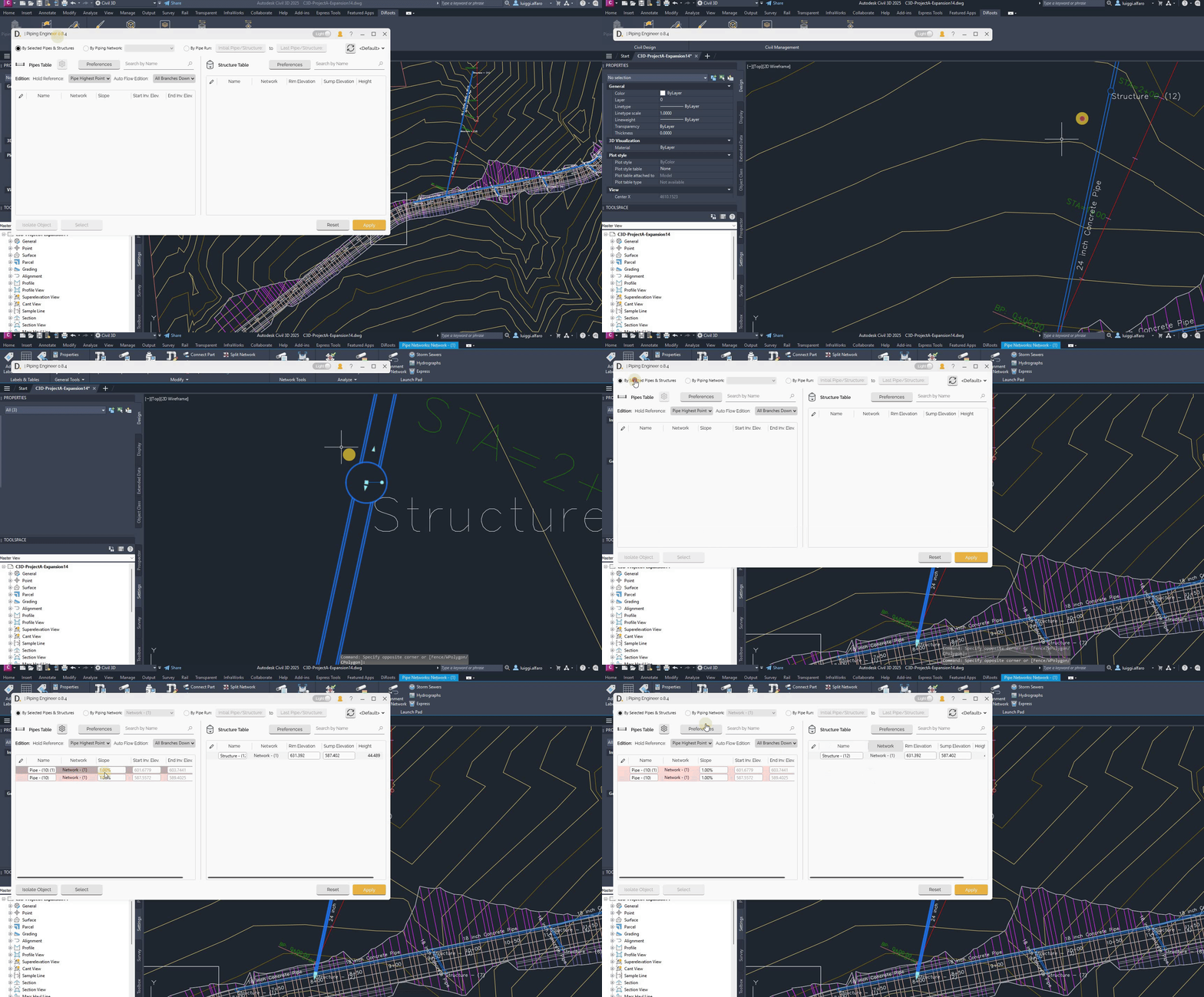
Note: the version on the image may not reflect the latest version of DiCivil Package.
Piping Engineer provides comprehensive table interfaces for managing pipes and structures with efficient data management and bulk operations capabilities.
Overview
Pipe and structure data tables allow you to:
- Manage the pipes and structures data through independent table interfaces.
- Perform bulk operations on multiple elements.
Table Column Preferences Customization
The tool allows you to customize the data columns you want to show in each of your tables by clicking on the ‘Preferences’ button and adding the required properties in the left panel as shown below.
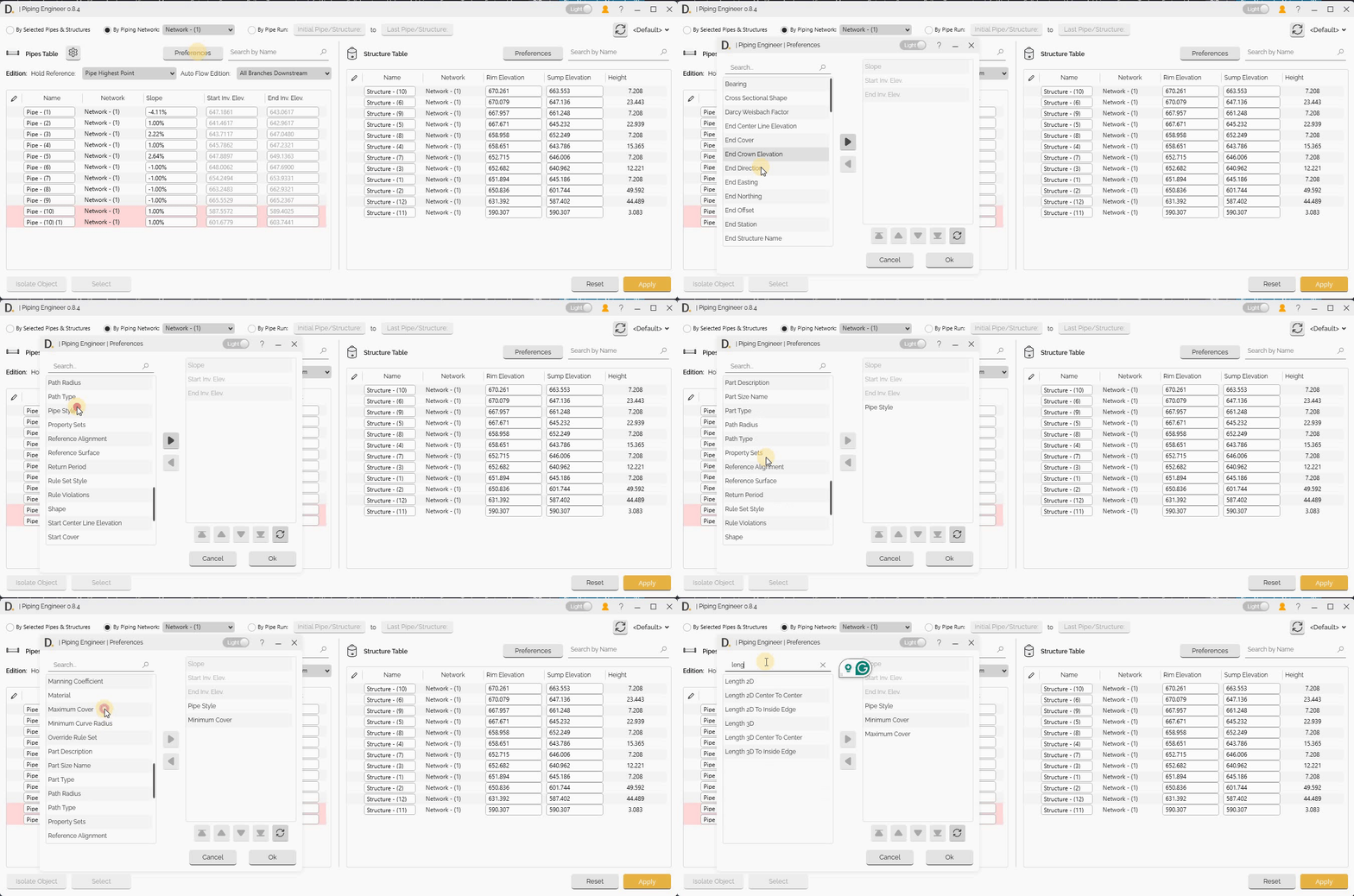
Note: the version on the image may not reflect the latest version of DiCivil Package.
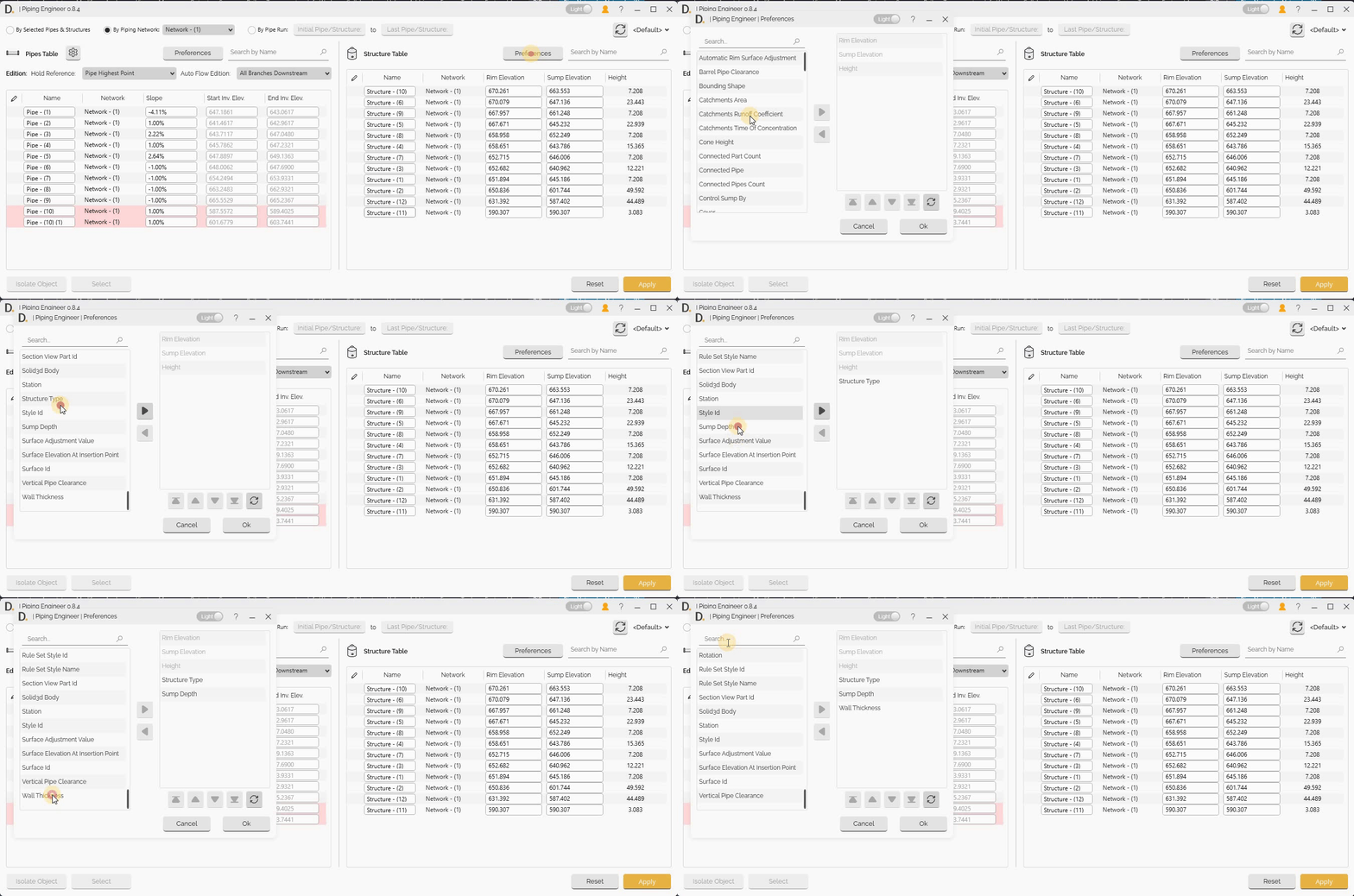
Note: the version on the image may not reflect the latest version of DiCivil Package.
Example Usage Cases
After configuring the column preferences of the table, the user can edit the properties required. For example, we have the following editing cases:
Part Swapping
The user can select the pipes and swap their part directly from the table interface.
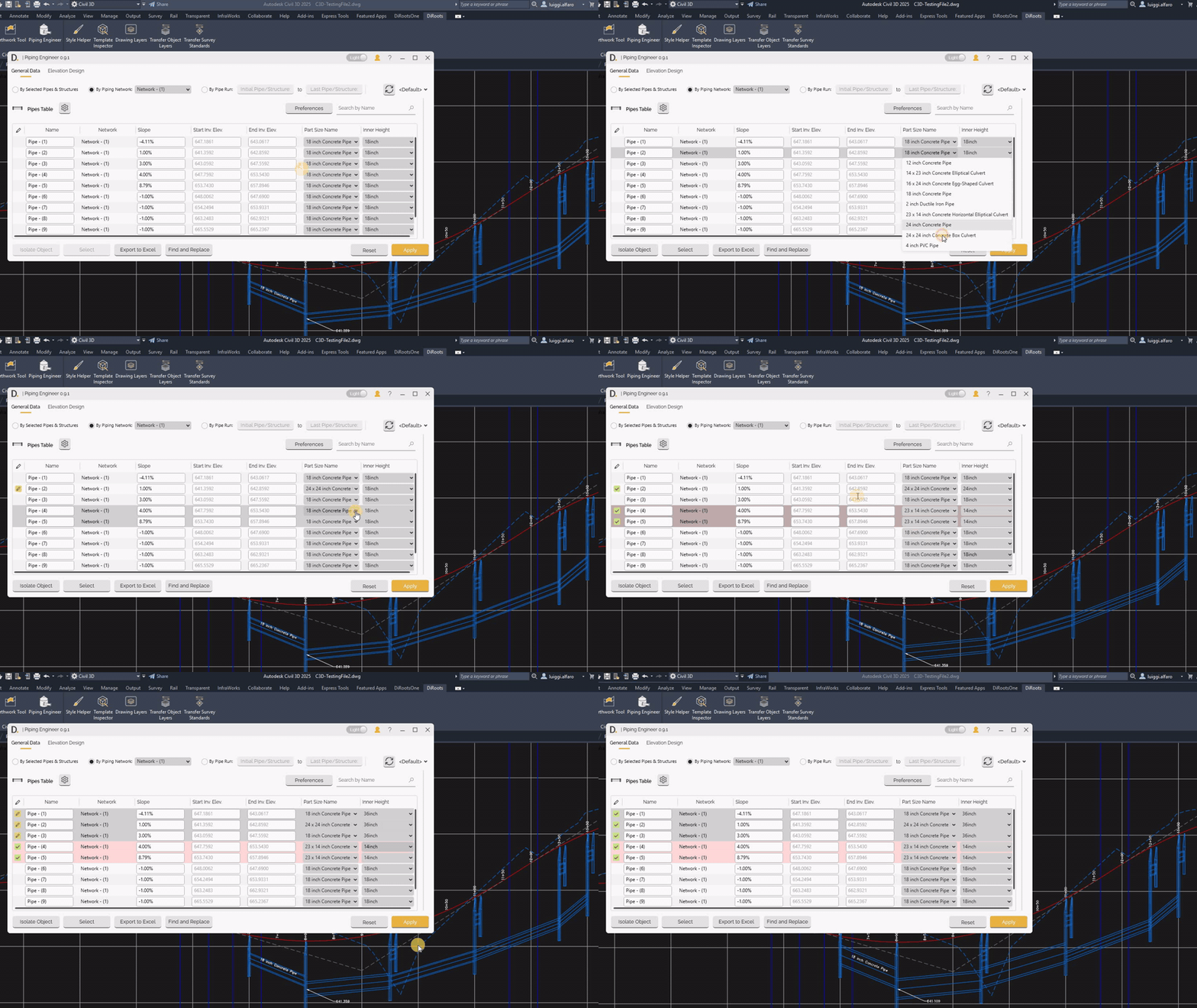
Note: the version on the image may not reflect the latest version of DiCivil Package.
Structure to Reference Surface Update
The user can select the structure and update the reference of the surface from the table interface.
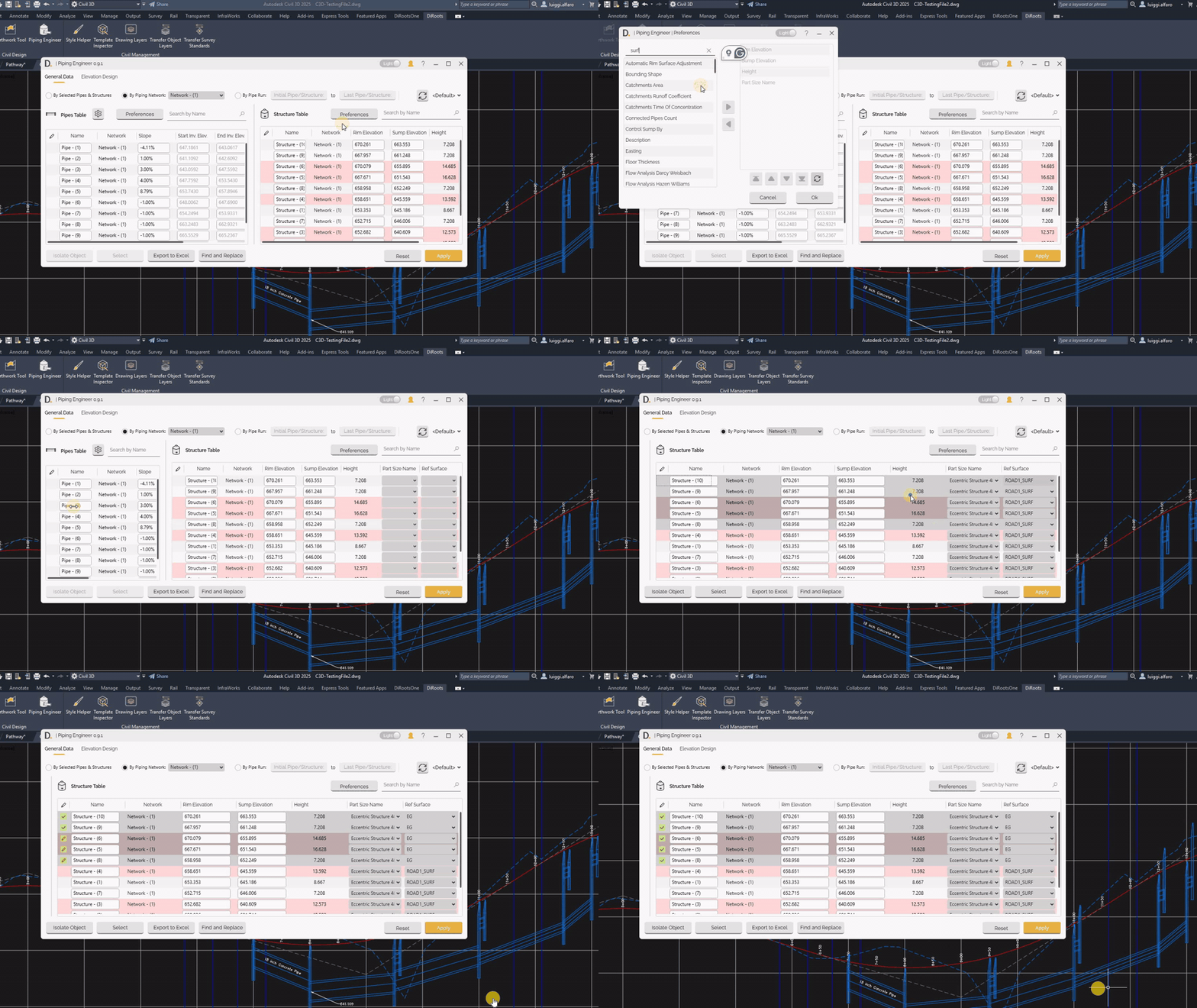
Note: the version on the image may not reflect the latest version of DiCivil Package.
Additional Features
Rule Validation Display
The tool highlights pipe and structure elements that do not comply with the rules with a red background.
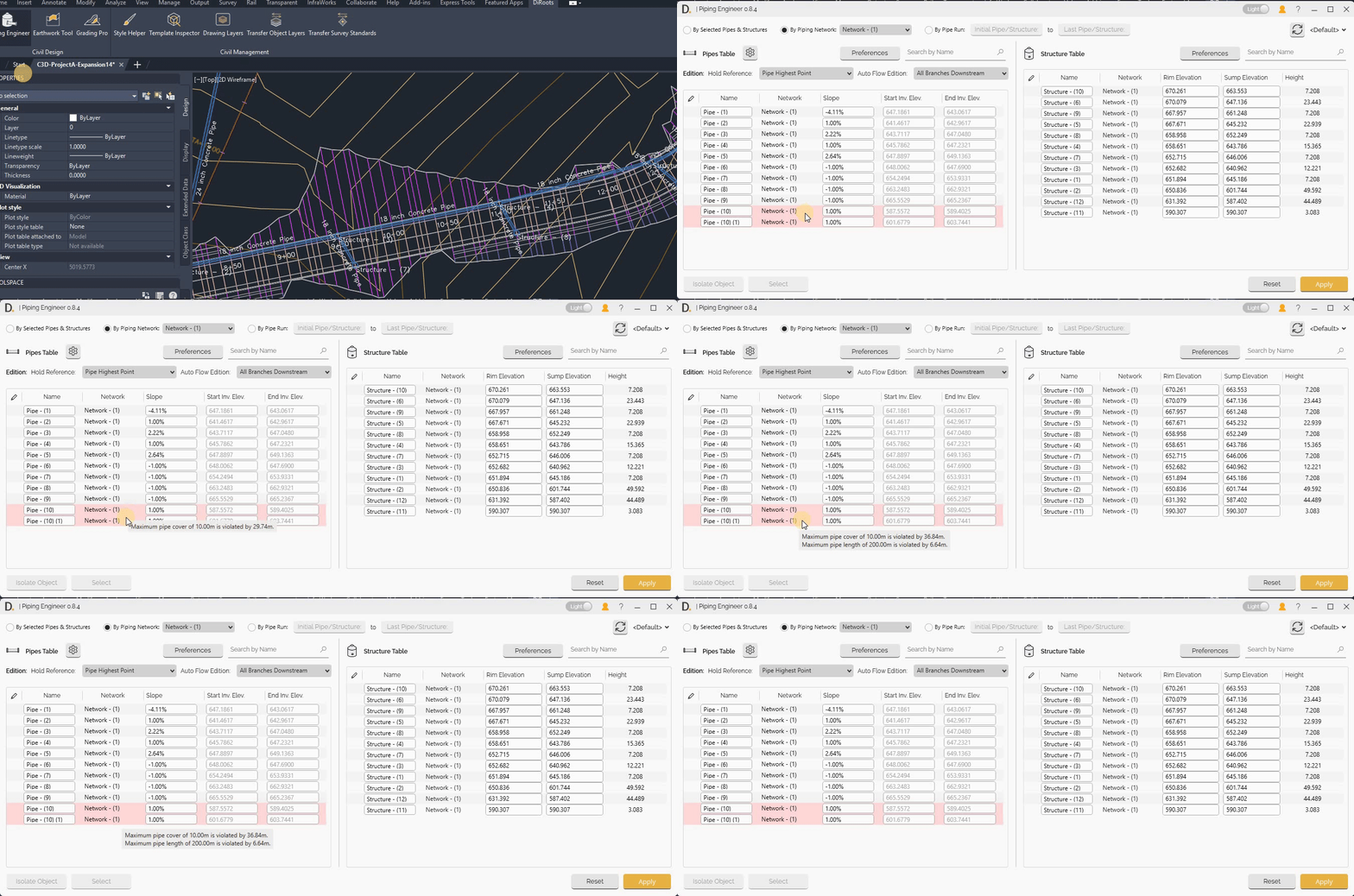
Note: the version on the image may not reflect the latest version of DiCivil Package.
Quick Slope Override Rule
Piping Engineer allows users to define a quick rule to check the slope range in the tool.
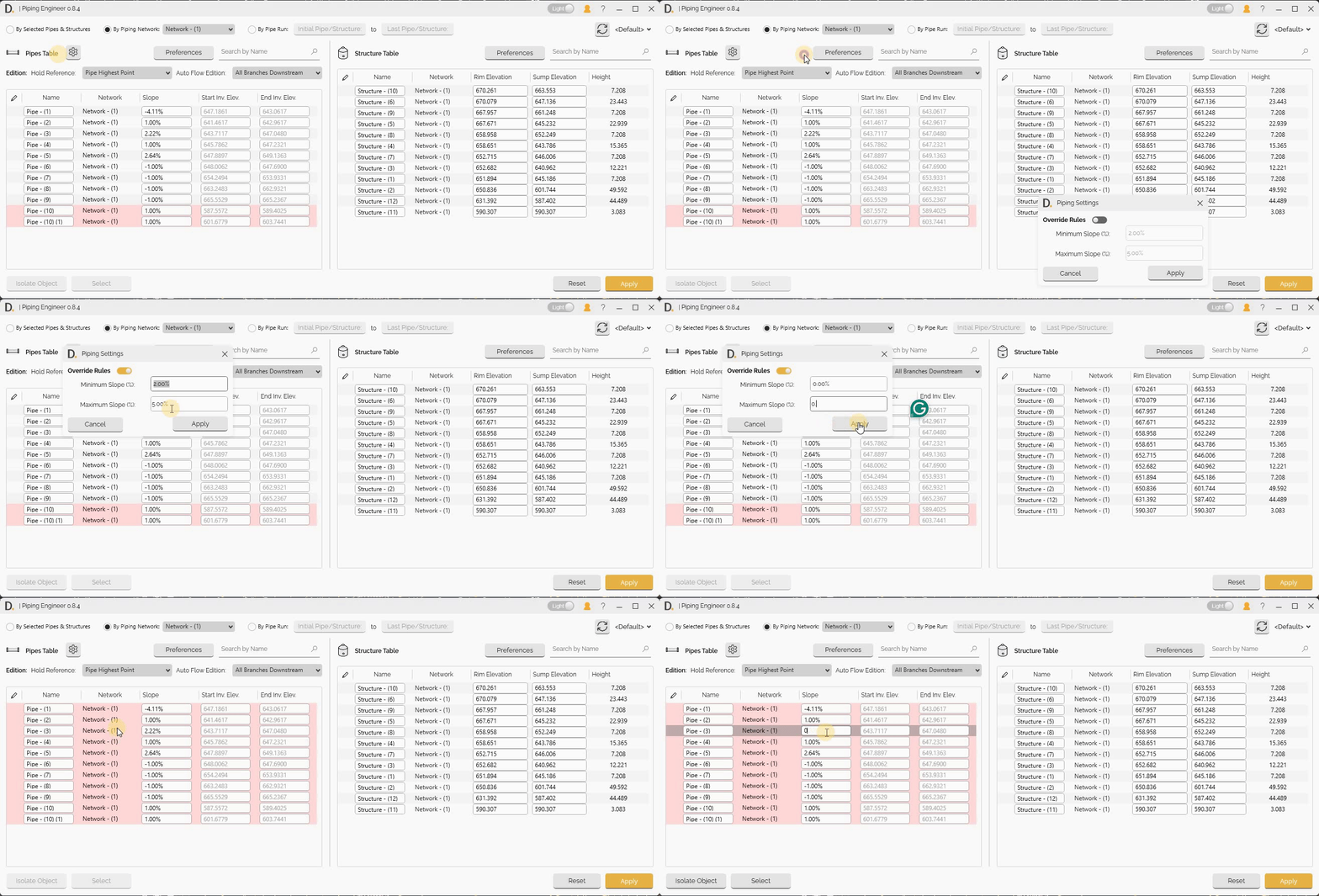
Note: the version on the image may not reflect the latest version of DiCivil Package.
Find and Replace
Piping Engineer includes the ‘Find and Replace’ feature to quickly find and replace property values across selected columns. This feature allows you to edit values efficiently by finding current editable property values and replacing them with new values, optionally adding prefixes and suffixes.
For more information about the ‘Find and Replace’ feature, including usage instructions, see the Find and Replace section in the Style Helper User Guide.
Refreshing Latest Data
The tool has a refresh button to update the latest data from the file.
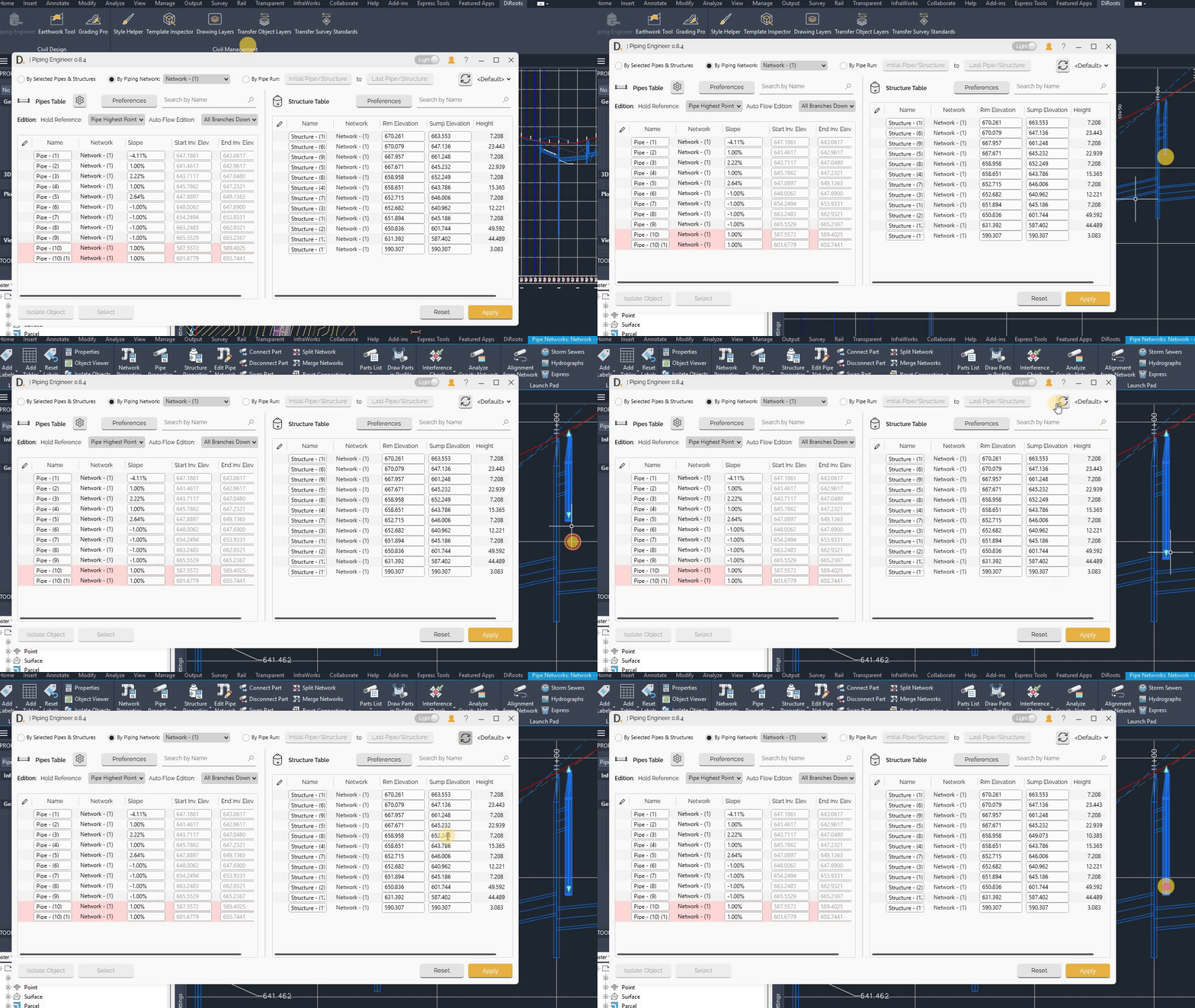
Note: the version on the image may not reflect the latest version of DiCivil Package.
Basic Workflow
- Open Piping Engineer - From the DiRoots tab.
- Select Network - Choose the piping network to work with.
- Choose Tool - Select the appropriate tool tab(Elevation Design, General Data.).
- Configure Settings - Set up tool-specific parameters and options.
- Apply Changes - Execute modifications and validate results.
- Save Profile - Save configurations for future use.